Commit f28a9e
2026-05-01 10:43:49 lisa: Y7 wiki: add Cable and Interface Quick Guide Standalone reference page covering microSD, USB-A, micro HDMI, Ethernet RJ45, and USB-C. Photos sourced from Wikimedia Commons (different from the Pi setup video stills, so students see varied examples of each cable). Linked from the Pi Setting Up page.| /dev/null .. dt7/Cable and Interface Quick Guide.md | |
| @@ 0,0 1,102 @@ | |
| + | # Cable and Interface Quick Guide |
| + | |
| + | *A reference page for [Workshop 1 Hardware and Networks](/dt7/Workshop%201%20Hardware%20and%20Networks) and [Raspberry Pi - Setting Up](/dt7/Raspberry%20Pi%20-%20Setting%20Up). Use this when you're not sure what a cable is called or where it fits.* |
| + | |
| + | Every cable has a unique shape. If a cable feels like it's being forced, it's the wrong port. Below is the field guide — common name, the proper name, and what it plugs into. The photos show *different* examples from the ones in the Workshop 1 setup video, so you can recognise the same cable wherever you see it. |
| + | |
| + | --- |
| + | |
| + | ## microSD card |
| + | |
| + |  |
| + | |
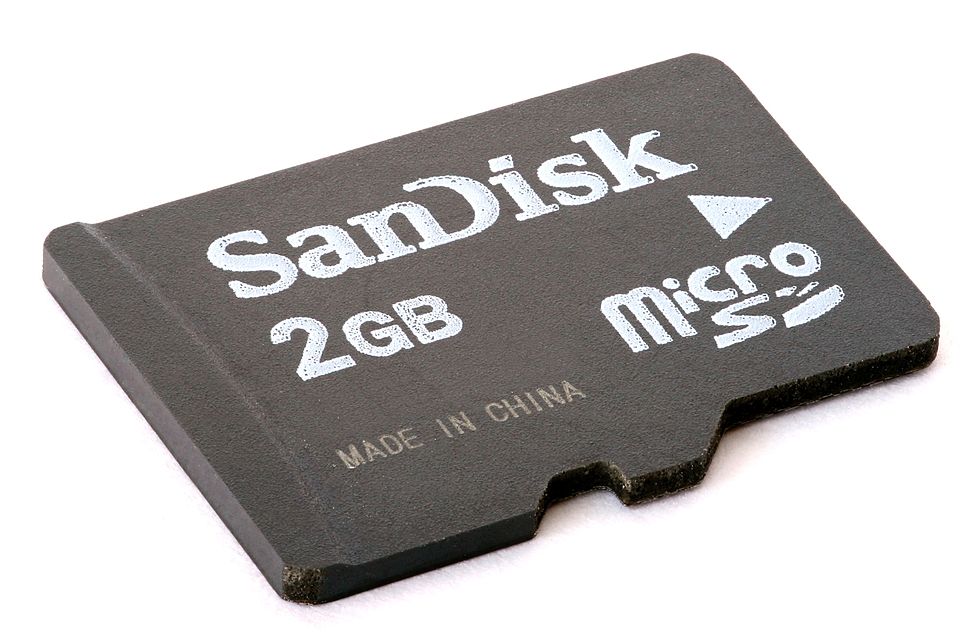
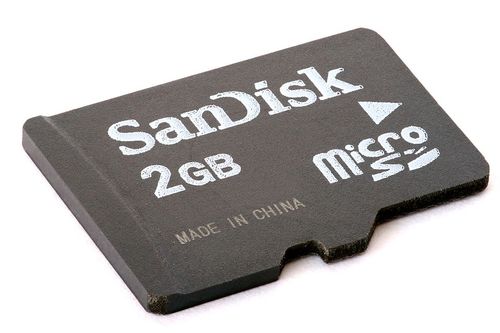
| + | *A 2 GB microSD card. Image by Afrank99, [CC BY-SA 3.0](https://creativecommons.org/licenses/by-sa/3.0/), via [Wikimedia Commons](https://commons.wikimedia.org/wiki/File:MicroSD_card_2GB_focus-stacked.jpg).* |
| + | |
| + | - **Common name:** microSD |
| + | - **Proper name:** Secure Digital — micro form factor |
| + | - **Fits into:** the slim slot on the underside of a Raspberry Pi, in phones, in some cameras and drones. The full-size **SD card** is bigger and goes in laptops, DSLRs, and card readers. |
| + | - **Holds:** the Pi's operating system. It's the Pi's "hard drive". |
| + | - **Look for:** the tiny gold contacts on one side, and the diagonal corner that tells you which way is up. |
| + | |
| + | --- |
| + | |
| + | ## USB-A |
| + | |
| + |  |
| + | |
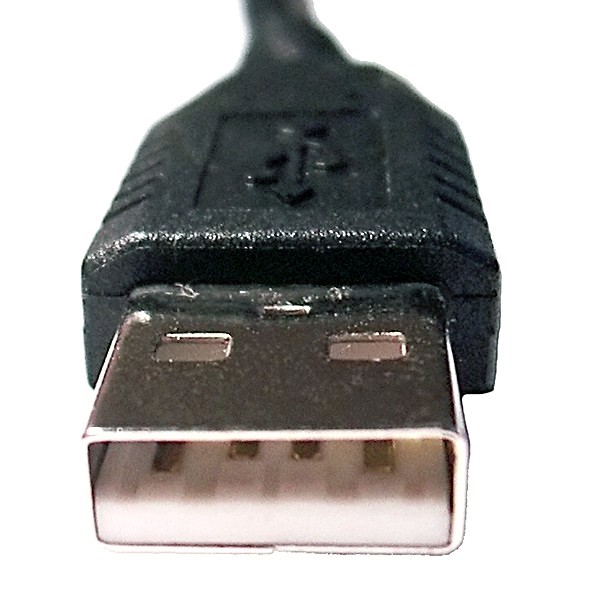
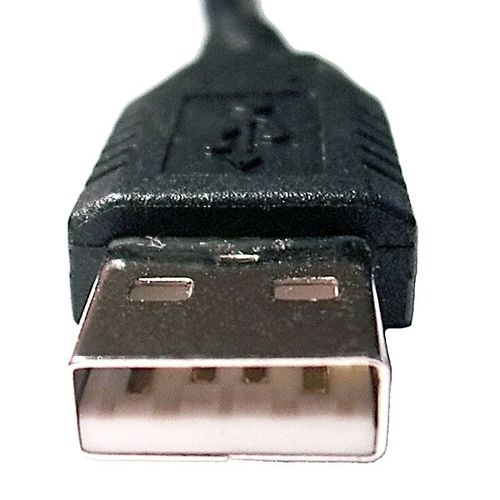
| + | *A USB Type-A plug. Image by André Karwath aka Aka, [CC BY-SA 2.5](https://creativecommons.org/licenses/by-sa/2.5/), via [Wikimedia Commons](https://commons.wikimedia.org/wiki/File:USB_Male_Plug_Type_A.jpg).* |
| + | |
| + | - **Common name:** USB plug, "the rectangular one" |
| + | - **Proper name:** USB Type-A |
| + | - **Fits into:** USB-A ports on the Pi, laptops, desktops, hubs, TVs. |
| + | - **Used for:** keyboards, mice, USB sticks, external drives, charging cables for older devices. Same plug on all of them — that's why one port can power so many different things. |
| + | - **Look for:** a flat rectangle. Only fits one way up — but you usually have to flip it twice before realising. |
| + | |
| + | --- |
| + | |
| + | ## Micro HDMI |
| + | |
| + |  |
| + | |
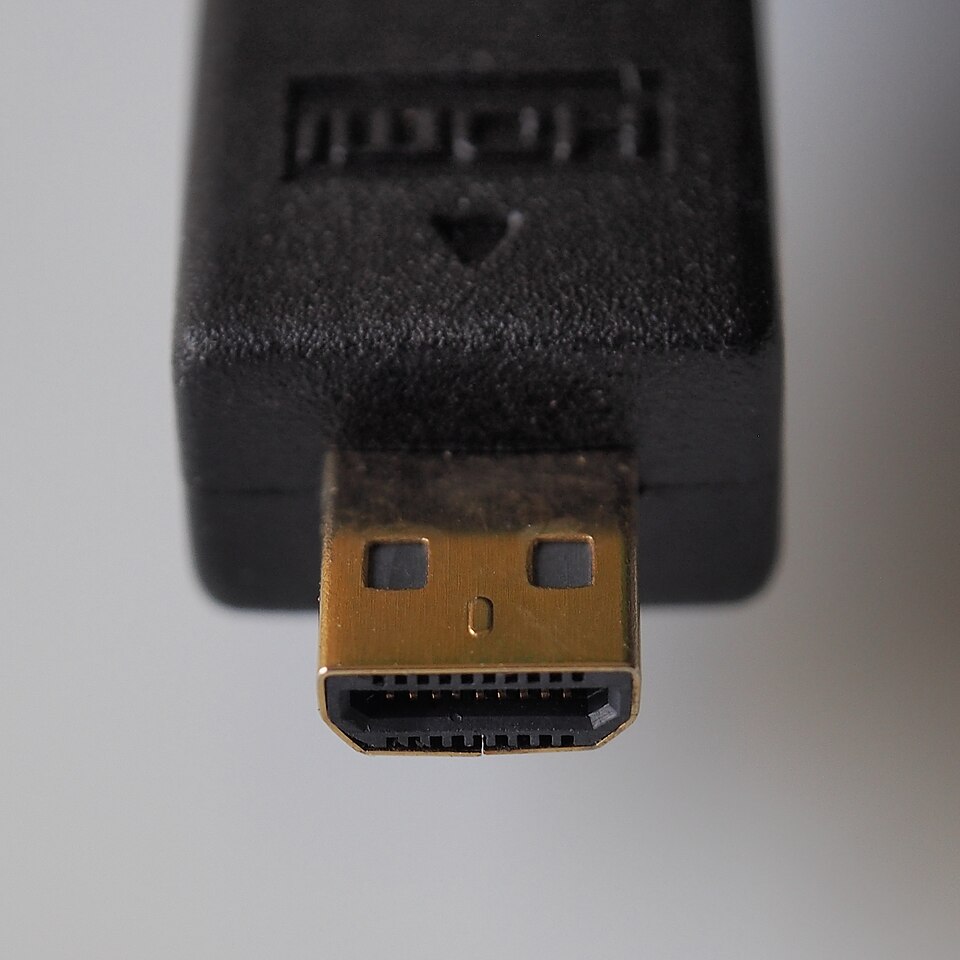
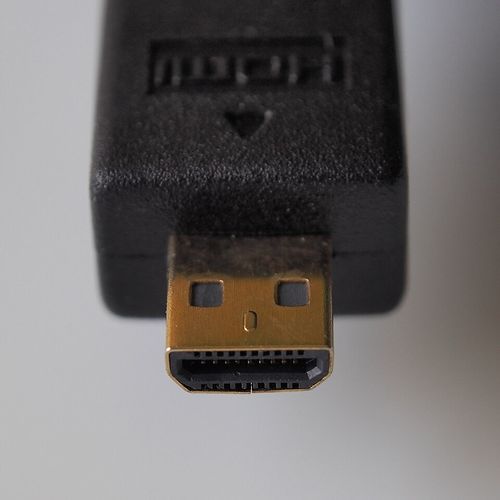
| + | *A micro HDMI cable end. Image by Pradeep717, [CC BY-SA 4.0](https://creativecommons.org/licenses/by-sa/4.0/), via [Wikimedia Commons](https://commons.wikimedia.org/wiki/File:MicroHDMI_CableEnd.jpg).* |
| + | |
| + | - **Common name:** "the small HDMI" |
| + | - **Proper name:** HDMI Type-D (micro HDMI) |
| + | - **Fits into:** the Pi 5's two display ports. The plug at the *other* end of the cable is normally **full-size HDMI** (Type-A) for the monitor. |
| + | - **Used for:** carrying video and audio from the Pi to a monitor or TV. |
| + | - **Look for:** the flattened trapezoid shape — wider at one edge, narrower at the other. There's only one way it fits. |
| + | - **Heads up:** a regular full-size HDMI cable will *not* fit a Pi 5. You need the micro version, or a small adapter. |
| + | |
| + | --- |
| + | |
| + | ## Ethernet (RJ45) |
| + | |
| + |  |
| + | |
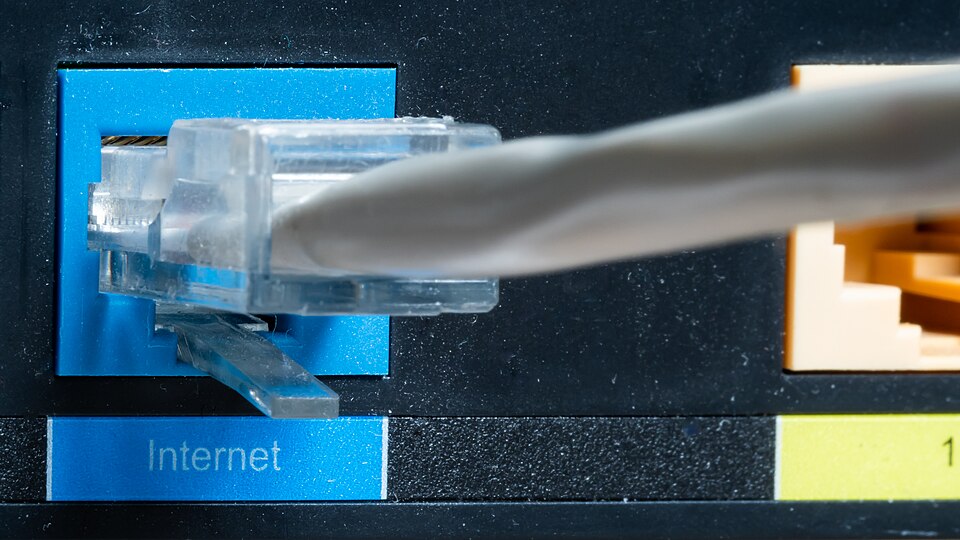
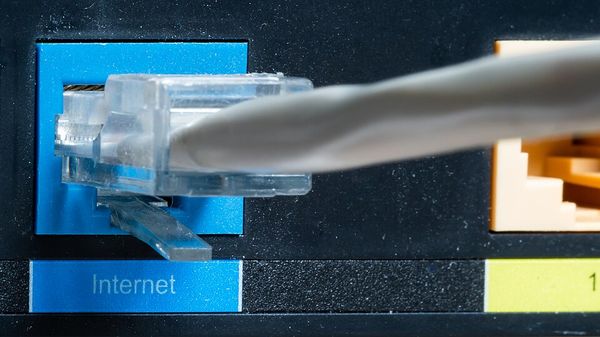
| + | *An RJ45 Ethernet port — the socket the cable plugs into. Image by Ajay Suresh, [CC BY 2.0](https://creativecommons.org/licenses/by/2.0/), via [Wikimedia Commons](https://commons.wikimedia.org/wiki/File:Ethernet_Port_(49790583026).jpg).* |
| + | |
| + | - **Common name:** network cable, internet cable |
| + | - **Proper name:** RJ45 — short for Registered Jack 45 (an 8-pin connector) |
| + | - **Fits into:** the Pi's Ethernet port (the kind of socket pictured above), the back of routers, switches, modems, and most desktop PCs. |
| + | - **Used for:** wired internet — usually faster and more stable than Wi-Fi. |
| + | - **Look for:** the little plastic clip on top of the *plug* that *clicks* when fully inserted into the socket. To unplug, push the clip down with your thumb first. |
| + | |
| + | --- |
| + | |
| + | ## USB-C |
| + | |
| + |  |
| + | |
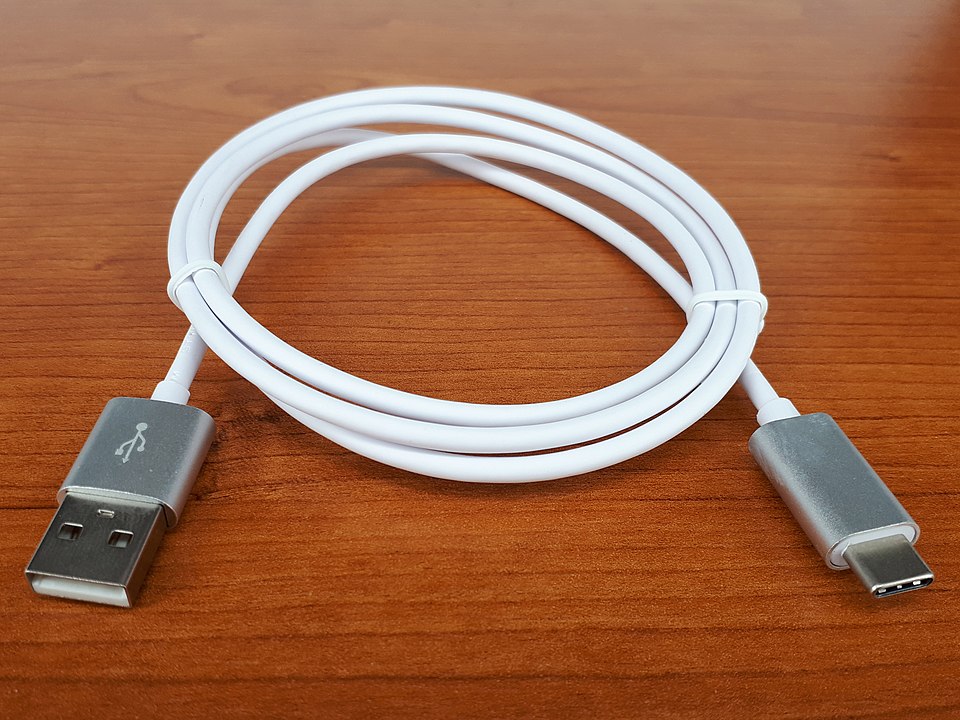
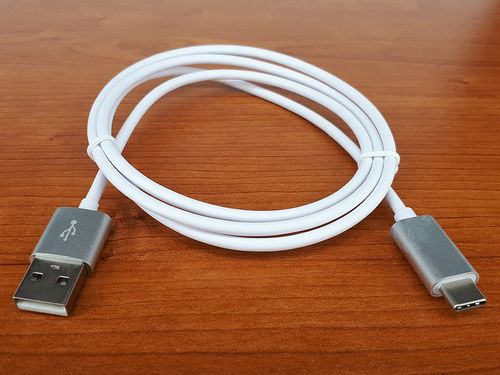
| + | *A USB-C plug. Image by Fructibus, [CC0](https://creativecommons.org/publicdomain/zero/1.0/), via [Wikimedia Commons](https://commons.wikimedia.org/wiki/File:USB-C_cable_2017_A.jpg).* |
| + | |
| + | - **Common name:** USB-C, the modern phone charger |
| + | - **Proper name:** USB Type-C |
| + | - **Fits into:** Pi 5 power input, recent Android phones, modern laptops, iPads, Switch consoles. |
| + | - **Used for:** power on the Pi. (USB-C can also carry data and video on other devices.) |
| + | - **Look for:** the small oval plug. **Reversible** — it fits both ways up. This is the only modern plug that doesn't make you flip it. |
| + | - **Heads up:** the Pi has *no on/off switch*. Plugging in USB-C power is what turns the Pi on. Always plug power in **last**, after everything else is connected. |
| + | |
| + | --- |
| + | |
| + | ## <i class="fas fa-lightbulb"></i> Have a Go |
| + | |
| + | ::: info |
| + | **<i class="fas fa-pencil-alt"></i> Your turn!** No looking it up first. |
| + | ::: |
| + | |
| + | **<i class="fas fa-search"></i> Question** ① — A cable has a flat rectangular plug at one end and a small oval plug at the other. What are the two names? Where does each end go on a Pi 5? |
| + | |
| + | **<i class="fas fa-tv"></i> Question** ② — Your monitor only has full-size HDMI ports. The Pi 5 only has micro HDMI ports. What do you need to buy? |
| + | |
| + | **<i class="fas fa-wifi"></i> Question** ③ — Why does Ethernet click into place but HDMI just slides in? What problem is the click solving? |
| + | |
| + | **<i class="fas fa-question-circle"></i> Question** ④ — Pick a cable on this page. Find one at home. Take a photo of *both ends* and label what each end is called. |
| + | |
| + | --- |
| + | |
| + | See also: [Raspberry Pi - Setting Up](/dt7/Raspberry%20Pi%20-%20Setting%20Up) · [Workshop 1 Hardware and Networks](/dt7/Workshop%201%20Hardware%20and%20Networks) · [Raspberry Pi Foundation - What Is A Raspberry Pi](/dt7/Raspberry%20Pi%20Foundation%20-%20What%20Is%20A%20Raspberry%20Pi) |
| + | |
| + | *Last updated: May 2026.* |
| + | |
| + | |
| + | ← Back to [Year 7 Hub](/dt7/Year%207%20Hub) |
| /dev/null .. dt7/Cable and Interface Quick Guide/ethernet.jpg | |
| /dev/null .. dt7/Cable and Interface Quick Guide/micro-hdmi.jpg | |
| /dev/null .. dt7/Cable and Interface Quick Guide/microsd.jpg | |
| /dev/null .. dt7/Cable and Interface Quick Guide/usb-a-plug.jpg | |
| /dev/null .. dt7/Cable and Interface Quick Guide/usb-c.jpg | |
| dt7/Raspberry Pi - Setting Up.md .. | |
| @@ 93,7 93,7 @@ | |
| --- | |
| - | See also: [Workshop 1 Hardware and Networks](/dt7/Workshop%201%20Hardware%20and%20Networks) · [Raspberry Pi Foundation - What Is A Raspberry Pi](/dt7/Raspberry%20Pi%20Foundation%20-%20What%20Is%20A%20Raspberry%20Pi) · [Tom Scott - Fetch Execute Cycle](/dt7/Tom%20Scott%20-%20Fetch%20Execute%20Cycle) |
| + | See also: [Cable and Interface Quick Guide](/dt7/Cable%20and%20Interface%20Quick%20Guide) · [Workshop 1 Hardware and Networks](/dt7/Workshop%201%20Hardware%20and%20Networks) · [Raspberry Pi Foundation - What Is A Raspberry Pi](/dt7/Raspberry%20Pi%20Foundation%20-%20What%20Is%20A%20Raspberry%20Pi) · [Tom Scott - Fetch Execute Cycle](/dt7/Tom%20Scott%20-%20Fetch%20Execute%20Cycle) |
| *Last updated: May 2026.* | |