
Debugging with Breakpoints in Godot
Pause your game at any line, look inside, step forward. This is the level 5–6 skill on the C8-1 ladder — and the heart of the fix cycle in your screen recording.
Watch: Debugging Tips You MUST Know as a Godot Developer (DevWorm, 5:27 — breakpoints from 03:15), then do Try this now below on your own project.
What a breakpoint does
A breakpoint pauses your running game at a chosen line of code so you can check what values variables have, which lines have run, and whether the code is doing what you expect — instead of guessing.
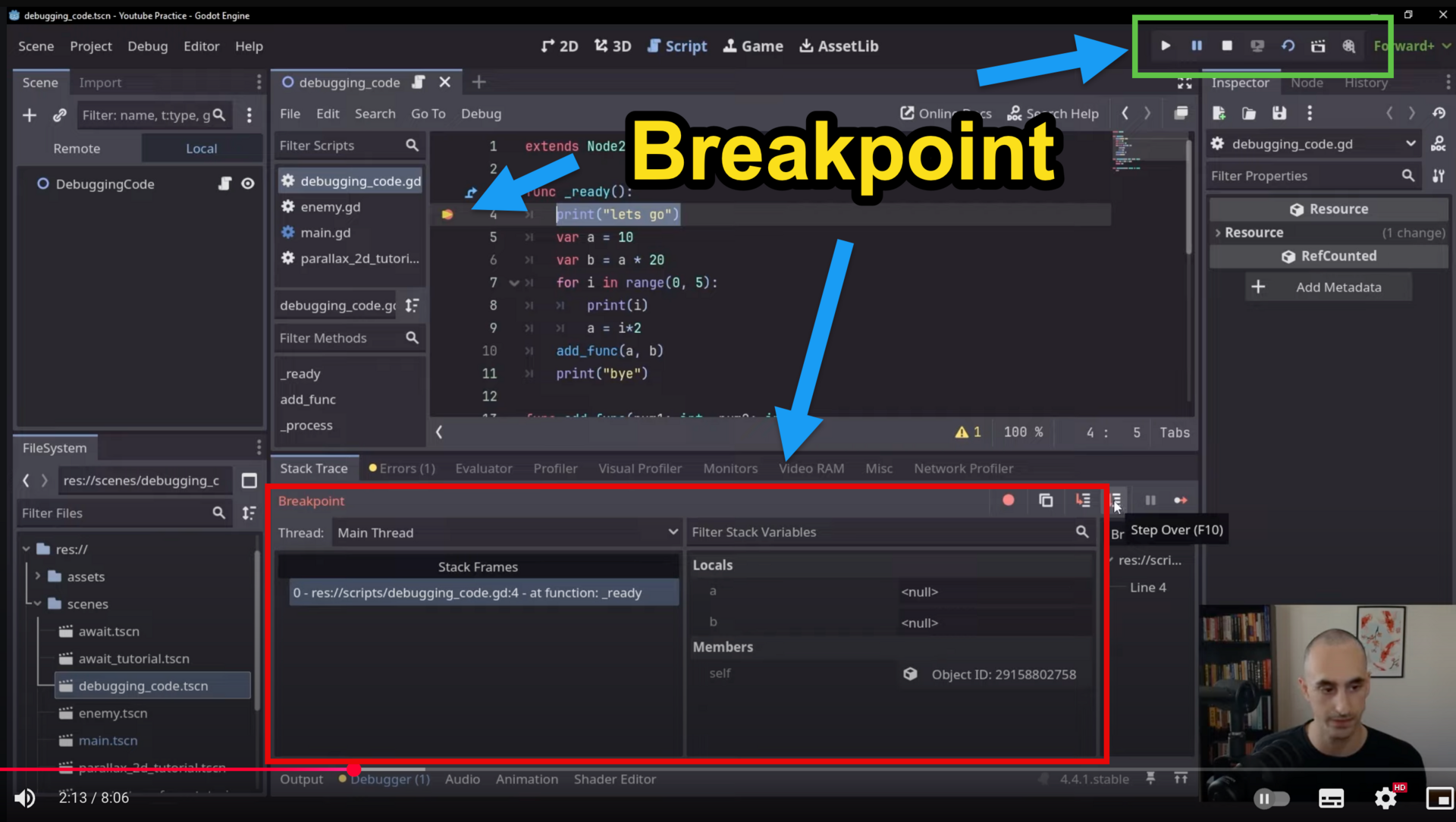
The workflow
- Set — open your
.gdscript and click in the gutter left of the line number where you want to pause. A red dot appears. - Run — press F5. The game stops at your breakpoint; an arrow in the gutter marks the line about to run, and the Debugger panel opens at the bottom.
- Inspect — open Locals in the Debugger: every variable in the current function with its current value.
- Step — move through the code with the controls below, watching Locals after each step.
- Fix and re-run — change the faulty line, run again, watch the test pass.
| Button | Key | What it does | Use when |
|---|---|---|---|
| Step Over | F10 | Runs just this line, then moves to the next (skips into functions) | Going line by line |
| Step Into | F11 | Follows the call inside a function on this line | You suspect the function itself |
| Continue | F8 | Keeps running until the next breakpoint | Done inspecting here |
Check the Locals window (most important)
var sum = 0
sum += 1
After stepping over sum += 1, Locals shows sum = 1. Use it to spot mistakes: is a variable supposed to be 10 but shows 0? Did a value change when you didn't expect it to? Check Locals after every Step Over.
Other tabs earn their keep too: Stack Frames shows which function you're in and what called it; Breakpoints lists every red dot so you can clear the ones you're done with; Output shows your print() messages.
The detective loop
- Set a breakpoint where you think the problem is.
- Run — it pauses.
- Check Locals — do the values match what you expect?
- Step Over (F10) line by line; Step Into (F11) when a function is the suspect.
- Ask: why is this variable not changing? Is this function running at all?
Try this now (5 minutes)
- Open a script in your SAT project.
- Set a breakpoint on a line inside a function that runs every game (e.g. in
_ready()). - Run the game — it pauses.
- Look at Locals: what values do you see?
- Press F10 and watch the values change.
In your recording: set a breakpoint inside the failing feature from your testing table, step to the faulty line, narrate what Locals shows, fix it, and re-run to pass — one unbroken take.